
Blog
How to Fix WordPress Critical Error in 2026


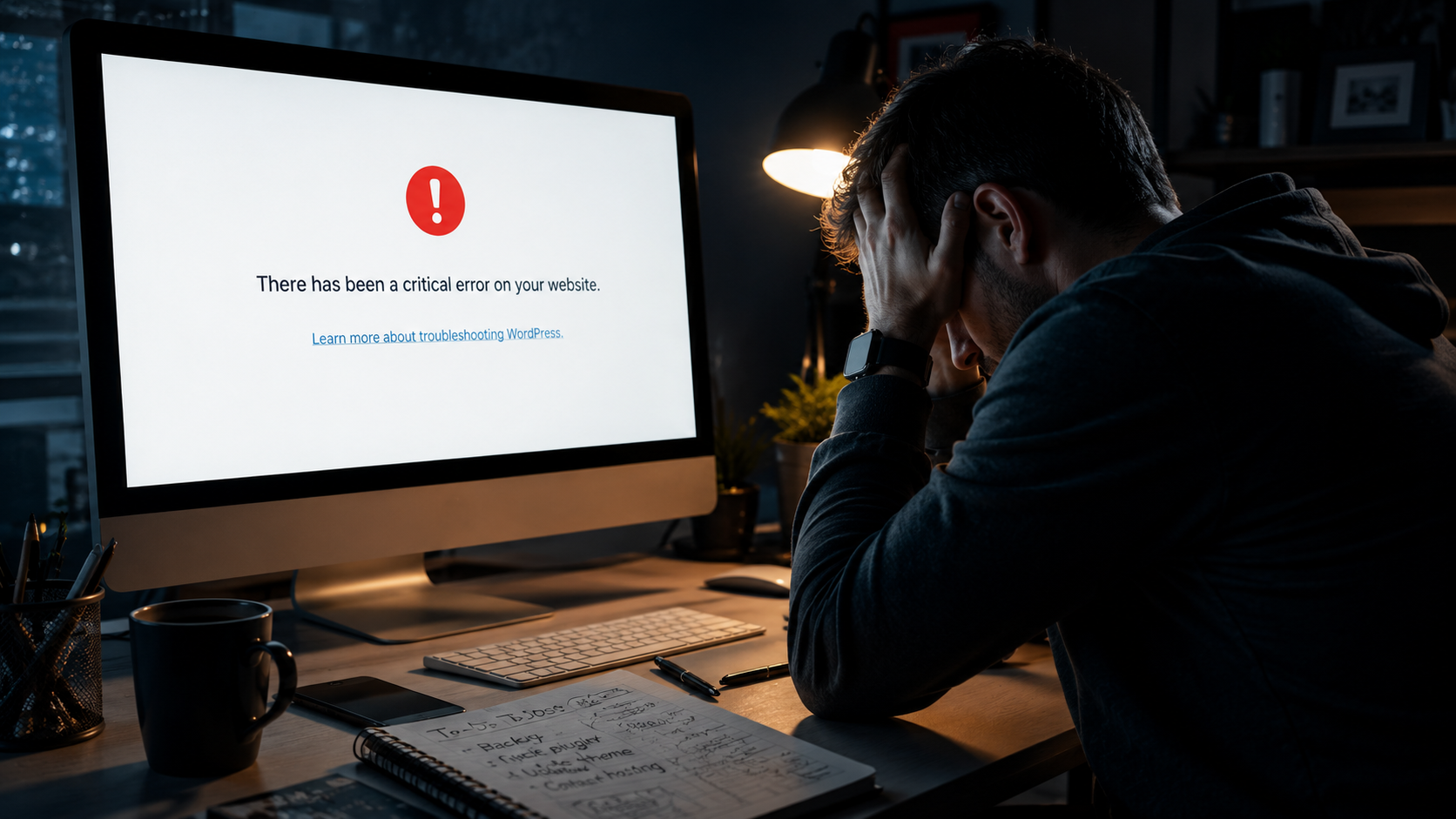
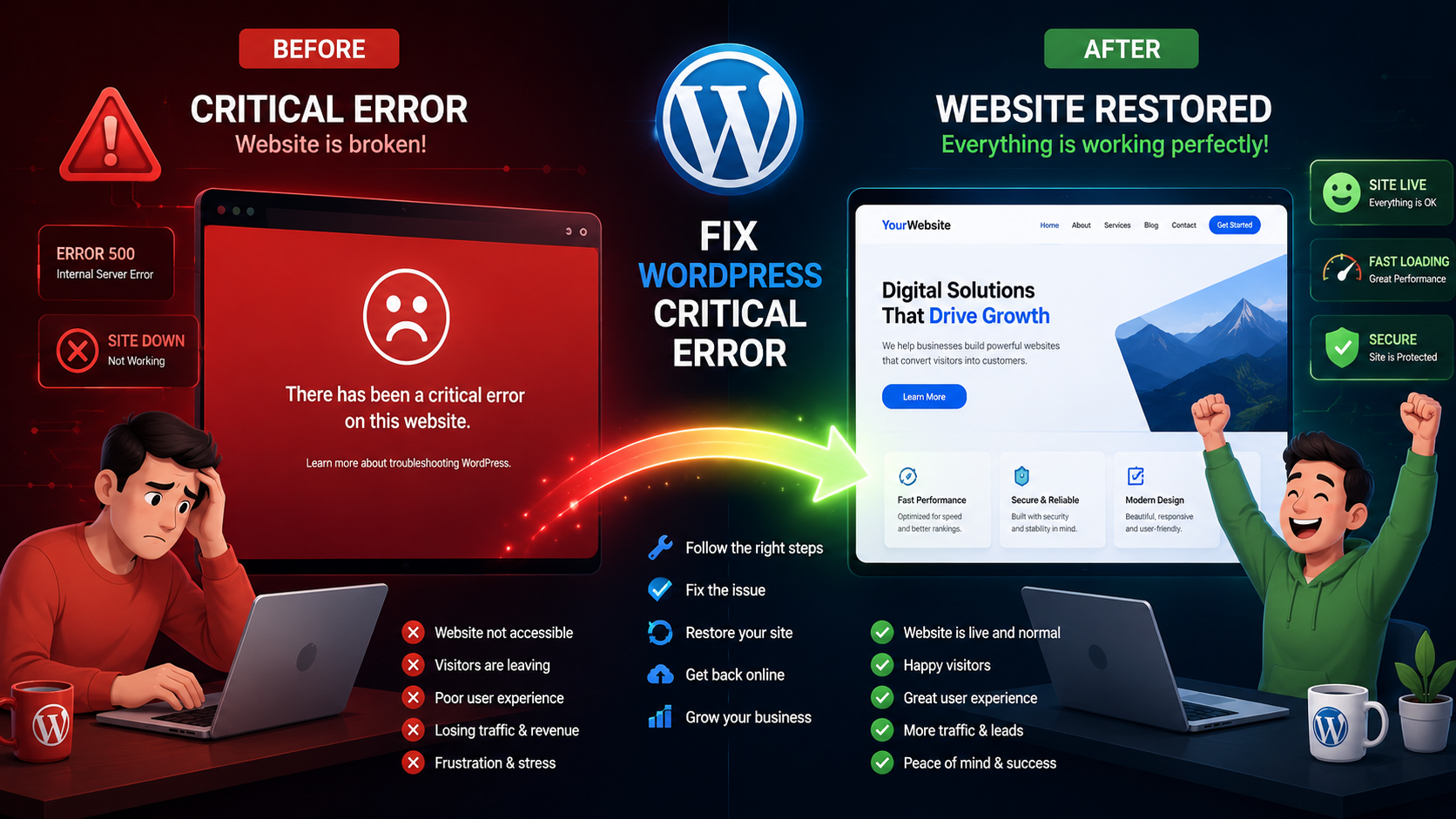
Seeing the “There has been a critical error on your website” message is one of the most stressful experiences for any WordPress site owner. Your site is down, visitors can’t access your content, and you might even be locked out of your own admin dashboard .
The good news? This error is almost always fixable, and in many cases, you can resolve it yourself without being a developer. This guide walks you through every step—from the simplest fixes to more advanced troubleshooting—so you can get your site back online quickly.
What Does This Critical Error Actually Mean?
The “There has been a critical error on your website” message is WordPress’s way of protecting your site . When a PHP fatal error occurs, WordPress stops loading the page to prevent further issues and displays this generic message instead of exposing sensitive technical details
Scelerisque vulputate
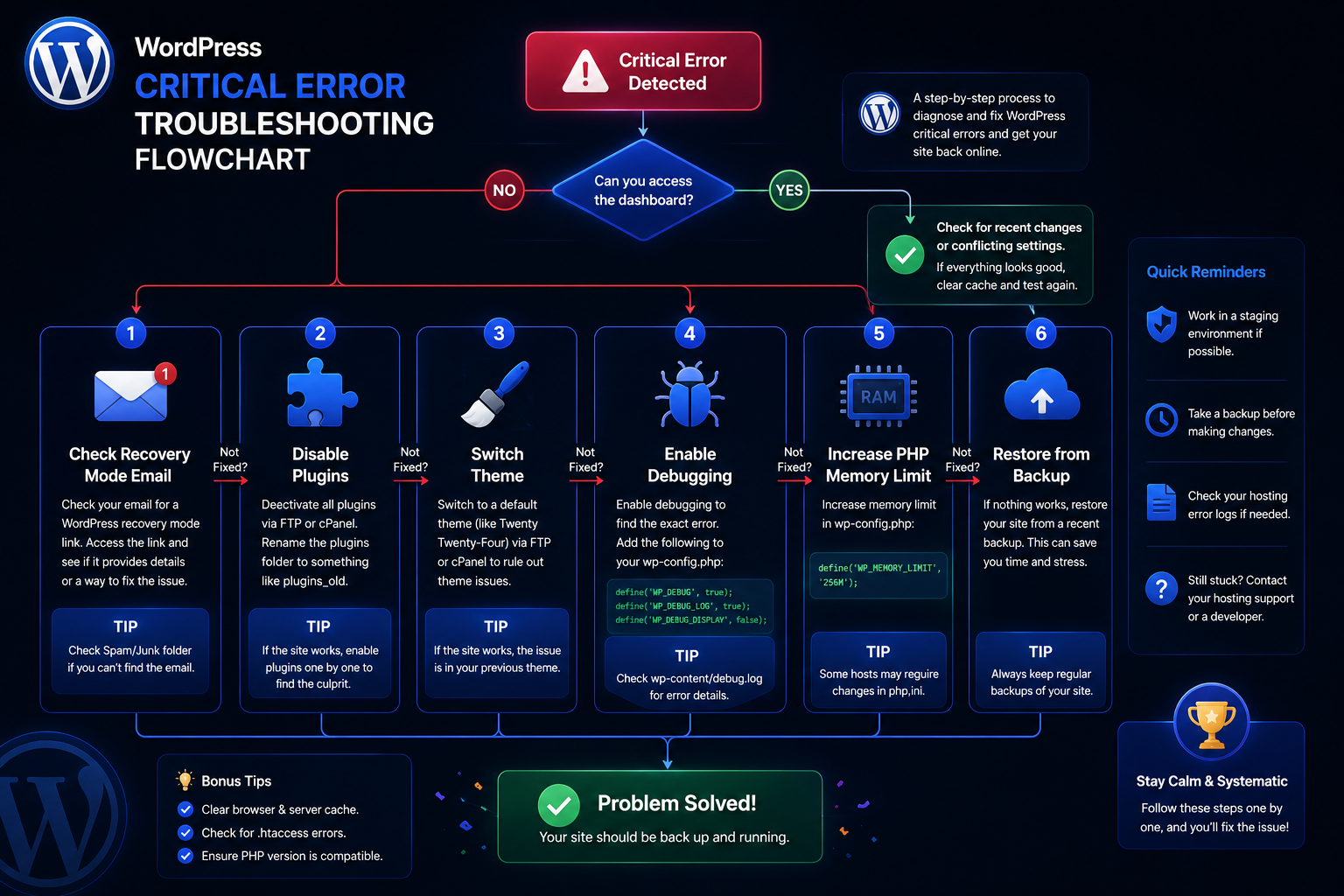
Step-by-Step Fixes
Start with the simplest solutions first and only move to advanced steps if the issue persists.
Step 1: Check Your Admin Email for Recovery Mode
This is the fastest and safest way to fix the error.
-
Check the inbox (and spam folder) of the email address associated with your WordPress admin account.
-
Look for an email with the subject “Your Site is Experiencing a Technical Issue” .
-
Click the Recovery Mode link inside the email. This logs you into your WordPress dashboard in a safe mode.
-
WordPress will often highlight the problematic plugin or theme. From here, you can deactivate it directly .
If you can’t find the email or the link doesn’t work, proceed to the next steps.
Step 2: Clear Your Cache
Sometimes, a cached version of the error page continues to appear even after the issue is fixed . Clear:
-
Your browser cache
-
Any caching plugin cache (like WP Rocket or W3 Total Cache)
-
Your hosting provider’s cache (if available)
-
Your CDN cache (like Cloudflare)
Then, reload your site to check if the error clears
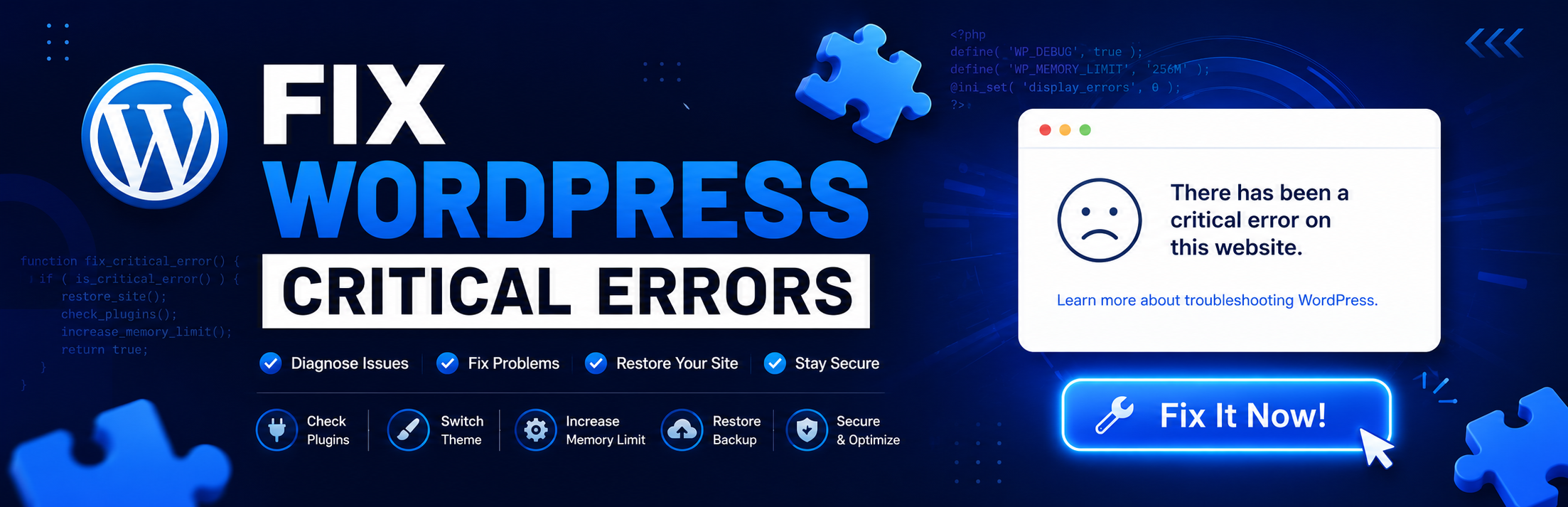
Step 3: Enable WordPress Debugging to Find the Culprit
If you don’t have a Recovery Mode email, enabling WordPress debugging will show you the exact error and which file is causing it . This requires accessing your site files via FTP or your hosting control panel’s File Manager